How to add, replace and link document?
Add a document
There are several ways of adding documents. One way is to hover over the Content tab -> click on Document directory -> click on Add Document.
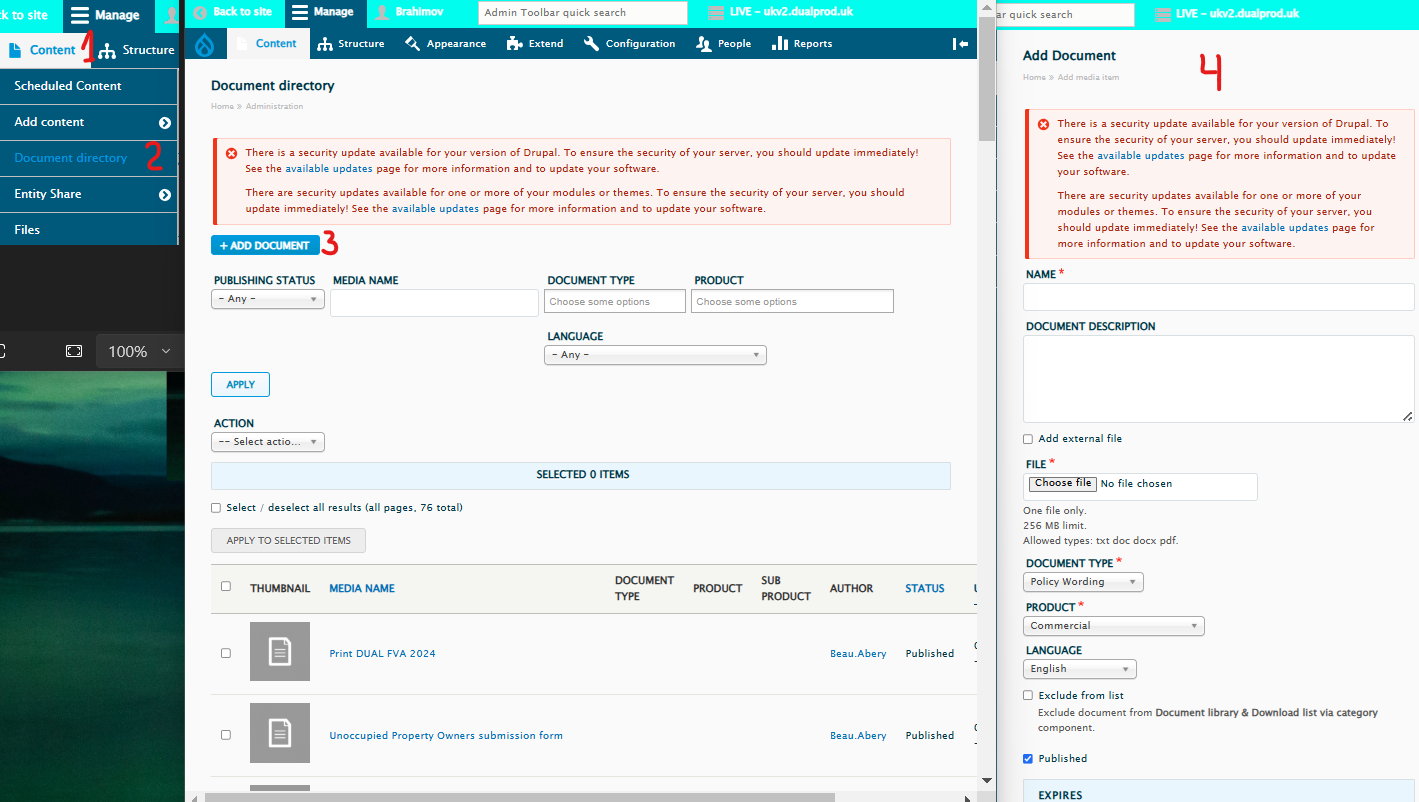
The name of the document is Public facing so make sure you give it a user friendly name.
- Select ‘Choose file’ to upload it from your computer. The supported formats are txt, doc, docx, and pdf.
- You’ll need to tag the document by choosing the type, product, and language.
- If you do want to exclude that particular document from the Document Library component (which pulls documents based on the tags) you can tick that option.
- Make sure the ‘Published’ is ticked.
- Click Save at the bottom of the screen.
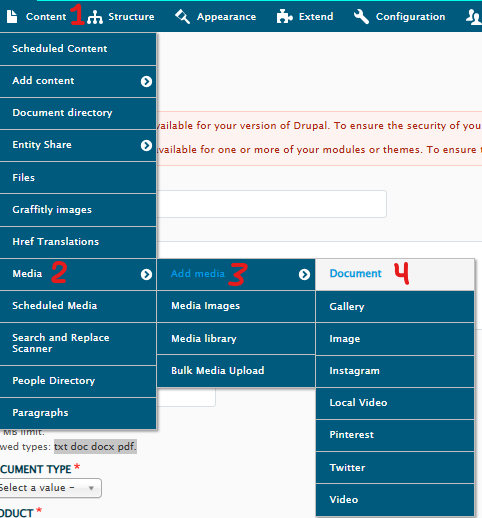
Another way to add a single document is by going directly to the Add Document step.
- Hover over Content tab
- hover over Media
- hover over Add media
- Click on Document A
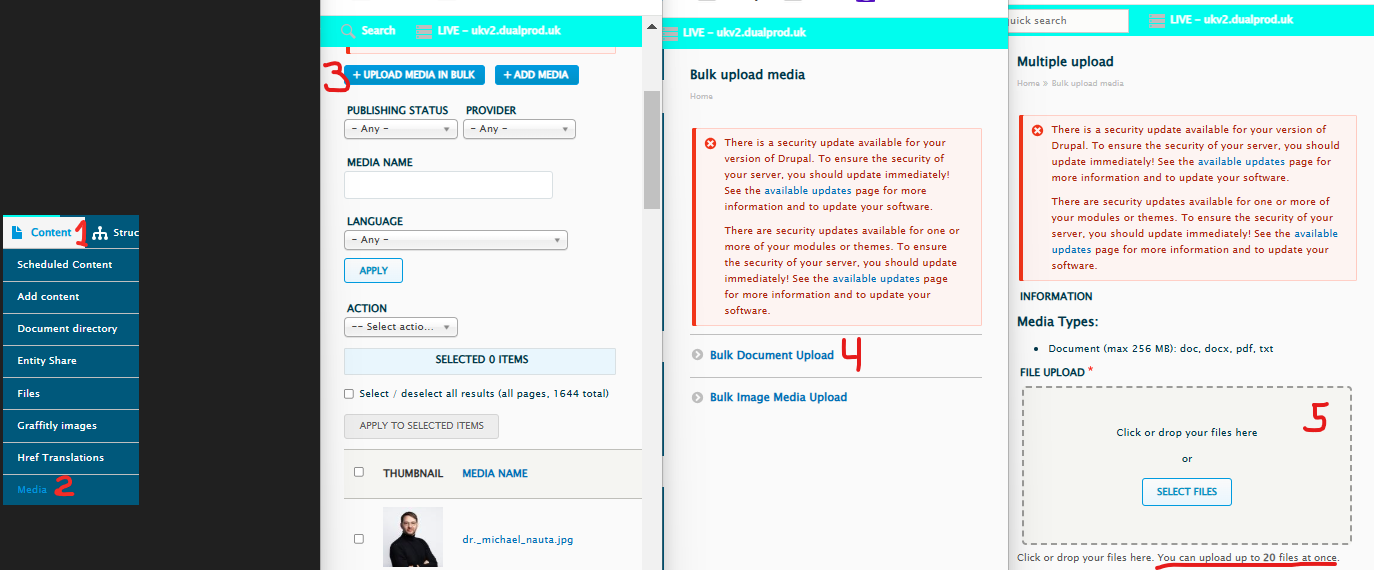
A third option is to add documents in bulk rather than adding them one by one:
Replacing existing document
Sometimes you might want to replace a document.
A document might be linked on multiple pages so rather than adding a new document and then having to update all those pages with the new document link, you can just replace the current document with a new one while keeping the same link.
Another reason is if you have an existing QR code to a specific document link or a vanity url/redirect to a specific document path.
To replace an existing document with a new one,
Hover over the Content tab
Click on the Document directory
Locate the document you’d like to replace
Click on the Edit button.

On the Edit page, select a replacement file, make sure the Overwrite original file is selected and click Save at the bottom of the screen.
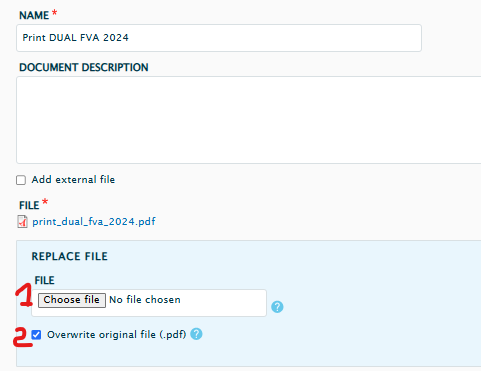
Once you’ve replaced your file, you need to raise a ticket with the DCX team so we can clear the server cache to and make the replacement file visible.
Link document
Linking to documents can be added in various ways:
Using Document Library components
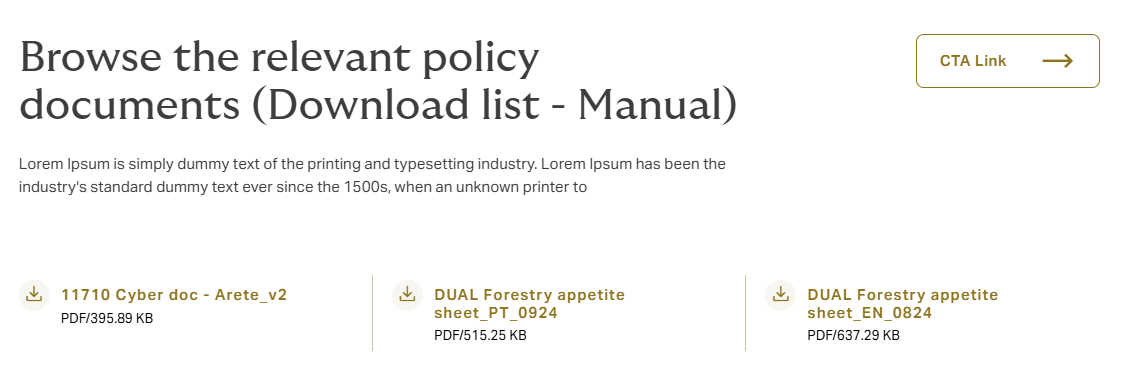
Utilising Download list – Manual component – add individual documents
Via Download list – By category component – pulls documents via tags/taxonomy
Using text links in a Body text component
Or select any component that has a link field
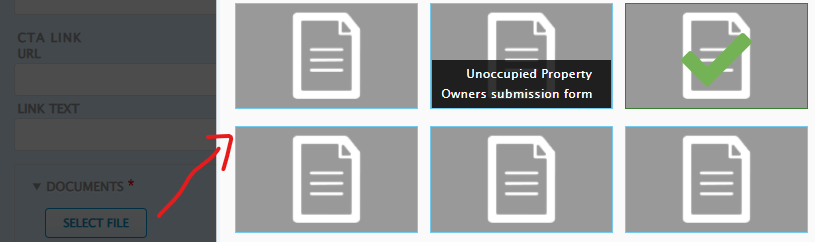
To add documents to the Download list – Manual, just click on the Select file, search for the file name and select it.
To add multiple documents, click on Select file and choose another one.
To add a document link as a text link or within any other component, you need to:
First, access the document via the Document directory or the Media landing pages
Click on the document label

Click again on the label to open the document
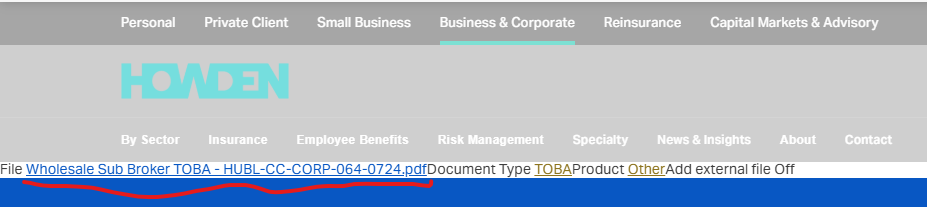
You will see a link like the one below.
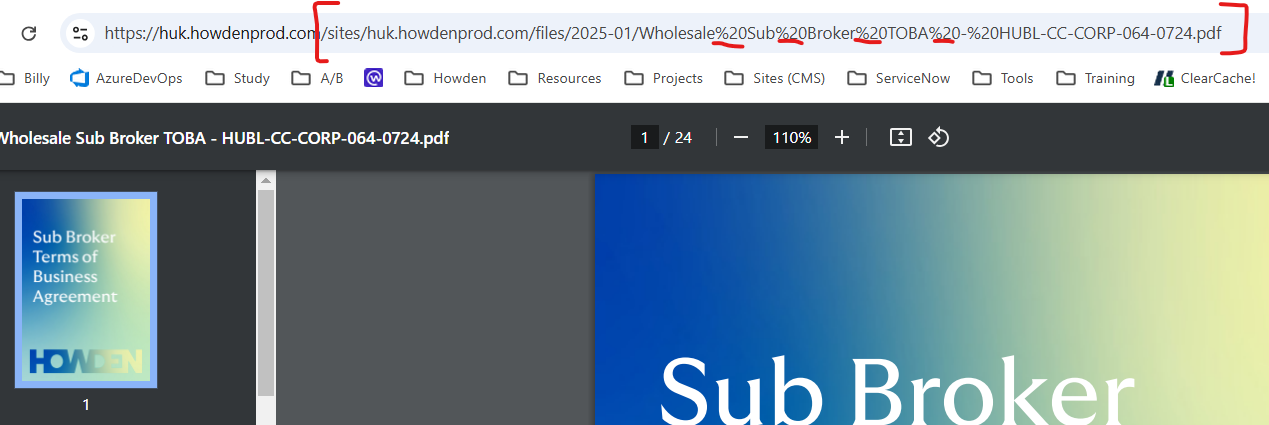
You can either copy the link part starting from /sites/….. or replace the initial CMS server link with https://www.howdengroup.com/ or https://www.dualgroup.com and copy the full absolute document link i.e.
Option1: /sites/huk.howdenprod.com/files/2025- 01/Wholesale%20Sub%20Broker%20TOBA%20-%20HUBL-CC-CORP-064- 0724.pdf
Option 2: https://www.howdengroup.com/sites/huk.howdenprod.com/files/2025- 01/Wholesale%20Sub%20Broker%20TOBA%20-%20HUBL-CC-CORP-064- 0724.pdf
Note the %20 in the link. This is because prior to uploading the file, the spaced between the words have not been replaced with hyphens which results in %20 being added by the system.
AS-IS: Wholesale Sub Broker TOBA - HUBL-CC-CORP-064-0724
TO-BE: wholesale-sub-broker-toba-hubl-cc-corp-064-0724
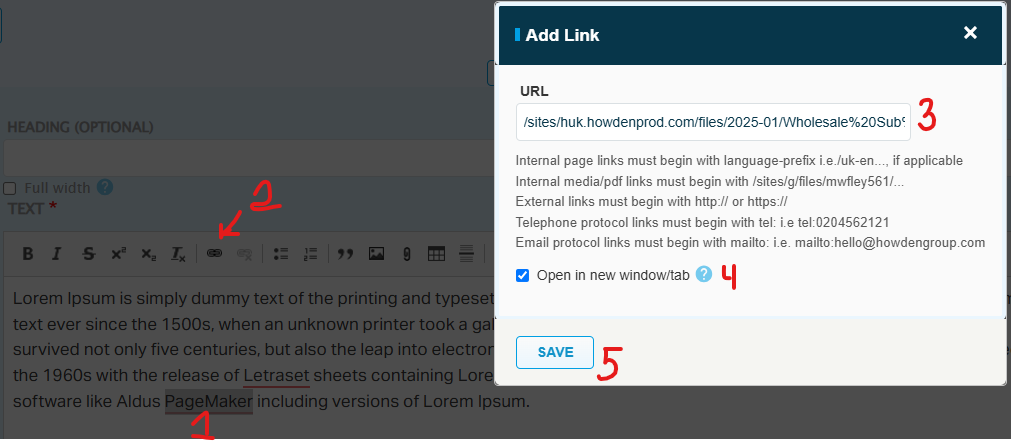
To add the link on a body text:
Highlight the text you’d like to add the link to
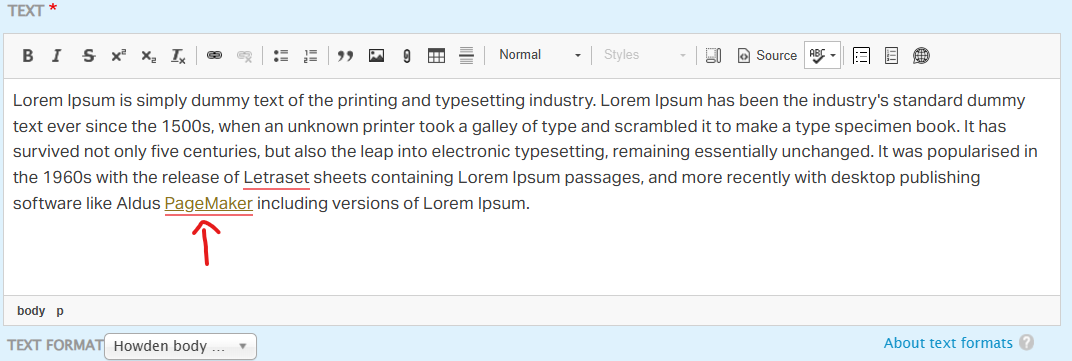
Click on the link button
Copy and paste either the /sites or the full link
Documents are usually set to open in a new tab/window
Click Save
To edit an exiting text link, just double-click on the link itself to open it and then replace it with a new link.