
How to create a custom block
What is a custom block?
Essentially, they are pieces of content created that can then be placed throughout the site as they are stored and reusable.
Any custom blocks created for the two-column editorial can be applied again in future on other pages without creating from scratch – think of them as shared content.
To create a new custom block (ie the content for the component), click ‘add new custom block’ button.
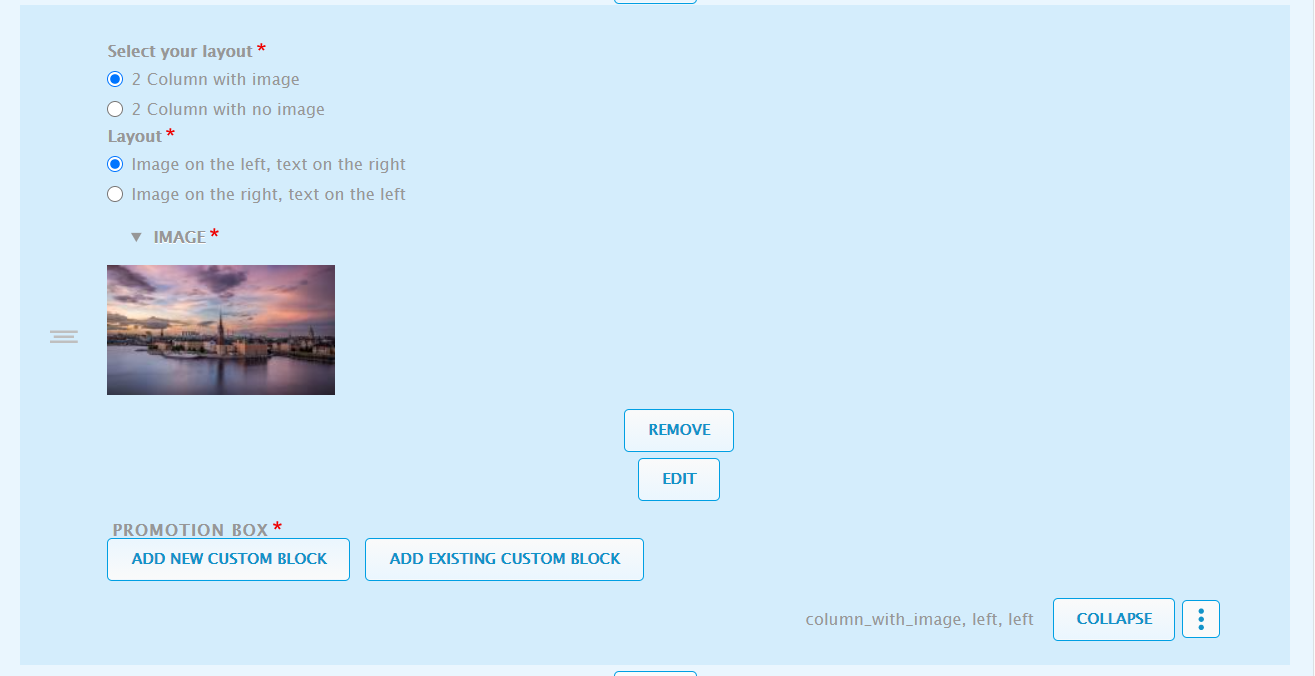
You will then see the following fields appear, which form the block creation:
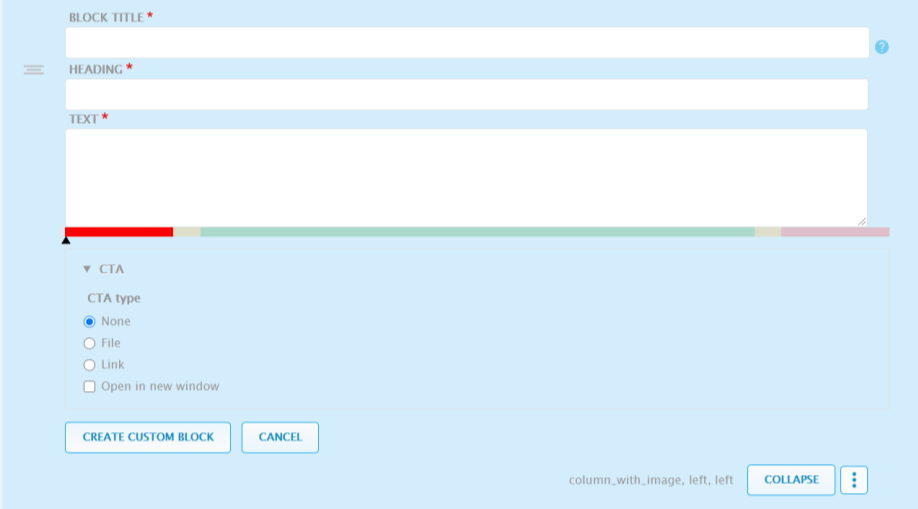
Block title
This field is for naming the custom block you are about to create.
It’s not exposed to users, but what helps you search and apply this block again in future. It’s extremely advisable to give custom blocks titles that are clear what the content of the block is and what it’s associated to.
Do not name custom blocks ‘CTA’ or ‘Employee benefits’ – these are too generic and anyone else in your team won’t understand what the custom block is if they search for existing custom blocks to apply at any given point. A better example of a custom block naming convention includes the likes of; what the custom block contains, the page it’s on, and the CTA detail if any.
Heading: this creates the heading for the block
Text: this is where you add your long form copy for the block
Once you’ve populated the above fields for your custom block, you then have a choice to add a CTA if you so wish for the custom block of content you are creating.
If you do want to add a CTA, it can be either a webpage link or a file link.
FILE CTA: Click ‘File’ for CTA type, then click the blue ‘Select file’ button.
You can either select an existing file from the library OR import a new file.
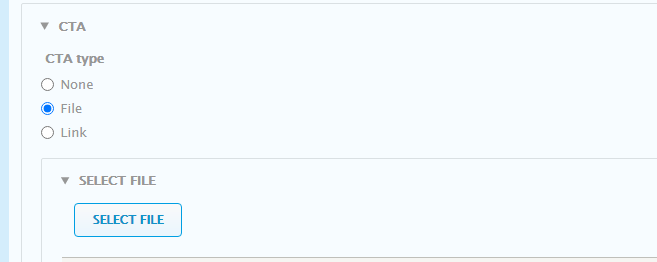
To import a new file, in the pop-up window select ‘Add/Import file’ in the top right. You can then drag/upload your required file. Once uploaded give your file link a CTA name, i.e. ‘Download now’.
Note: Files have to be in PDF format. Please ensure PDFS are optimised and reduced in MB size as much as possible before uploading to the CMS. Huge files will impact site speed. Please ensure files have a good naming convention as they will be exposed to the user to see.
Link CTA:
Select ‘Link’ as CTA type. Input your link into the link URL field. For links to other sites pages, include the whole link including https:// and make sure it opens to a new window. All external links should open in new tabs.
Once you’ve created your link, add the hyperlink text associated to the link that the user will click. IE ‘Find out more’ or ‘Visit Cyber’.
Now you have completed filling in all the fields required for your custom block, click ‘create custom block’ to save and apply.
Once you have placed a custom block, if you choose to edit that custom block please be cautious that wherever that custom block has been placed, it will update if you edit it.
For example, if you created a general ‘visit our news and insights’ CTA custom block named in that manner, as that block could be relevant to 10+ pages and has been placed, if you edit that custom block it will reflect that change on all those 10 pages.