How to translate content
If your website is multilingual or it’s going to be multilingual, you’d would have to understand how to translate the content.
There are certain translation limitations that must still be raised with the DCX team via a ServiceNow ticket or by emailing: website-feedback@howdengroup.com.
These are translations for:
- Navigation
- Footer
- Forms
- Homepages
Any random elements spread across the site such as Months/Dates/Search page placeholder text and results, CTA buttons (Contact us, Get in touch, Message us, Call us, Request a Quote etc.
Translating pages
There are several ways to translate pages. One is from the Content landing and the other is from the Editing mode of the page itself.
From the content landing page, if your website has AI translation enabled, you would also have that option in addition to the manual translation.
The AI translation would automatically translate the entire page for you so you would only have to review and adapt the copy after.
Note: All AI translations must be carefully reviewed by a human prior to publishing the page.
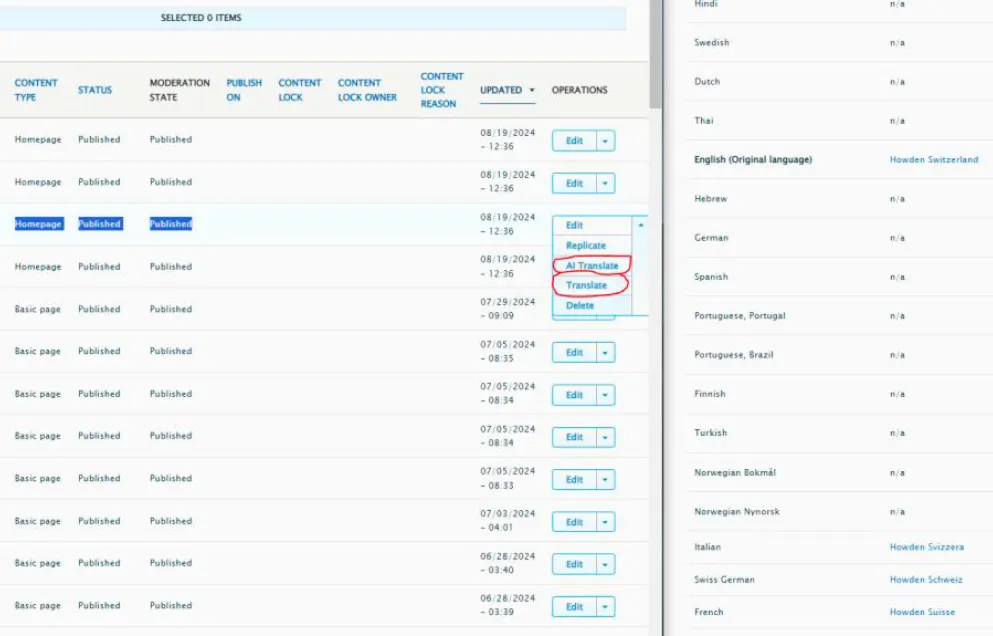
The manual steps to translate a page are:
- Go to either the content landing page /country-code /admin/content
- On the right-hand side, click on the down arrow next to the Edit button and then select ‘Translate’.
- You will be presented with a list of languages to choose from. Select the language you’d like to translate to. On this screen, there is also an indication of which is the original page. This is important because in the future, if you’d like to edit/change the layout of the translated page(s), first, you will have to change the layout of the original page, publish it and then apply the translations on the translated pages. The original page will automatically reflect the layout on the translated pages.
This also applies when removing content from the original page. Those components will also be removed from the translated pages.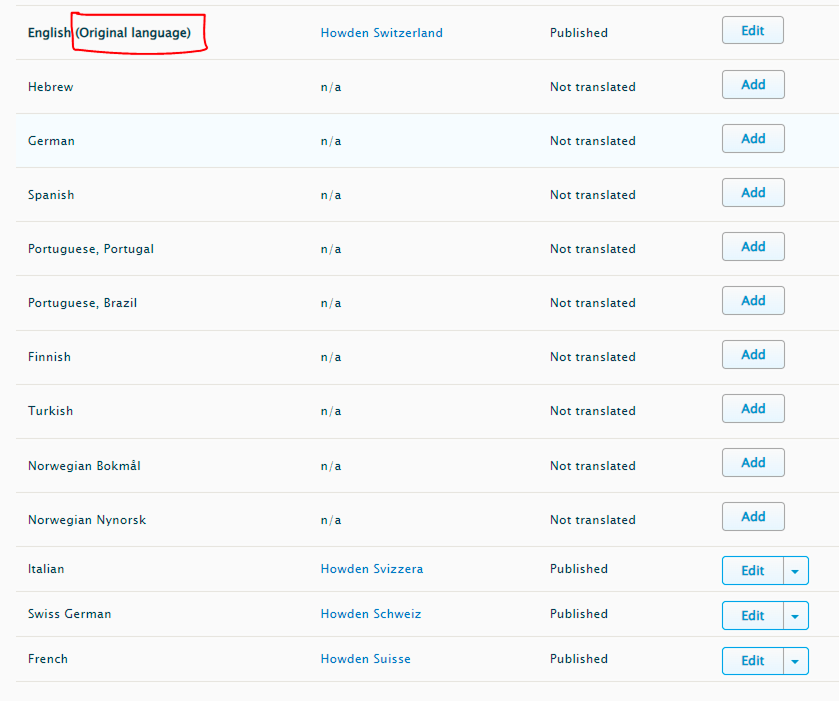
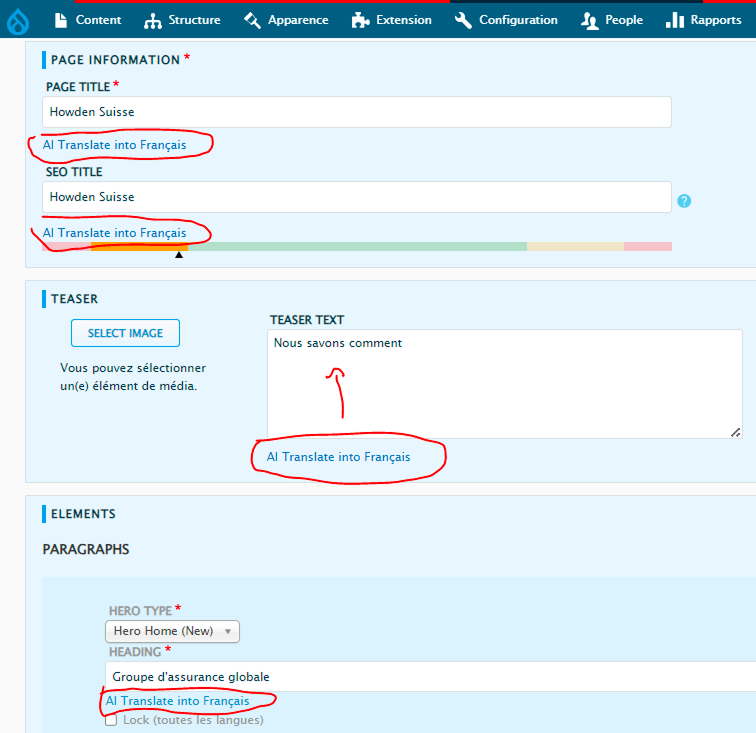
- Once you’ve selected your language and Clicked ‘Add’, you will be presented with a ‘copy/mirror of the original page. If AI is enabled on the site, you can help yourself by clicking on the ‘AI Translate into {selected language} next to each field. This will automatically translate the content in the Field. If AI is not available, you can raise it to the central yeam to enable it (if possible) or you can manually translate it using Deepl, Google Translate, ChatGPT or any other available tool.
Once you have gone through all the components and translated the content, before saving the page, you will also have to translate the URL/Link to the page.
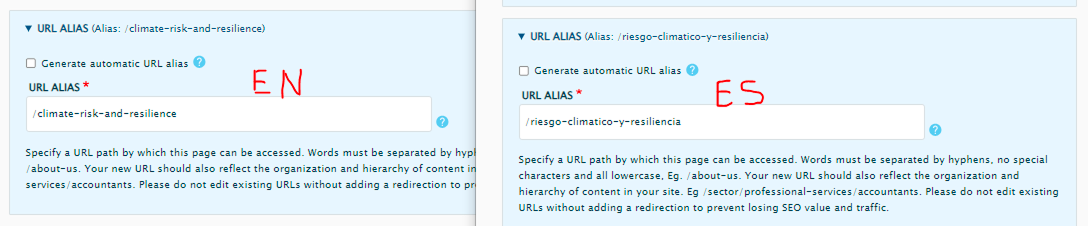
Example of the Climate risk and resilience page link for English and Spanish.
Once you have translated and published your page, you would have 2 links with the 2 country codes depending on the language you have chosen i.e.
https://www.howdengroup.com/pe-en/climate-risk-and-resilience
https://www.howdengroup.com/pe-es/riesgo-climatico-y-resiliencia
Note that one link is with /pe-en for Peru English and the other is with /pe-es for Peru Spanish.
The example below is for the Switzerland site which is translated into 4 languages.
https://www.howdengroup.com/ch-en - English
https://www.howdengroup.com/ch-fr - French
https://www.howdengroup.com/ch-de - German
https://www.howdengroup.com/ch-it - Italian
Once your translations are complete, you can raise a ticket with the DCX team to add links to those pages in the navigation.
Translating people
Same as the pages, if you’d like to display team members in more than one language version of the site, the people in the people directory also need to be translated. It is not possible to add English profiles on a French (/fr-fr) version of the site. They will not appear in the search when you are trying to add them.
In other words, you can add English profiles to /fr-en and French profiles to /fr-fr.
In the below example we have translations from English to Traditional Chines (tc) and Simplified Chinese (/sc)

It’s up to you in what order you’re translating as long as you have the correct setup i.e.
You need to have 3 translations for each person (English, Traditional Chinese & Simplified Chinese) and you need to have 3 pages (one for each language).
Profiles in the People directory: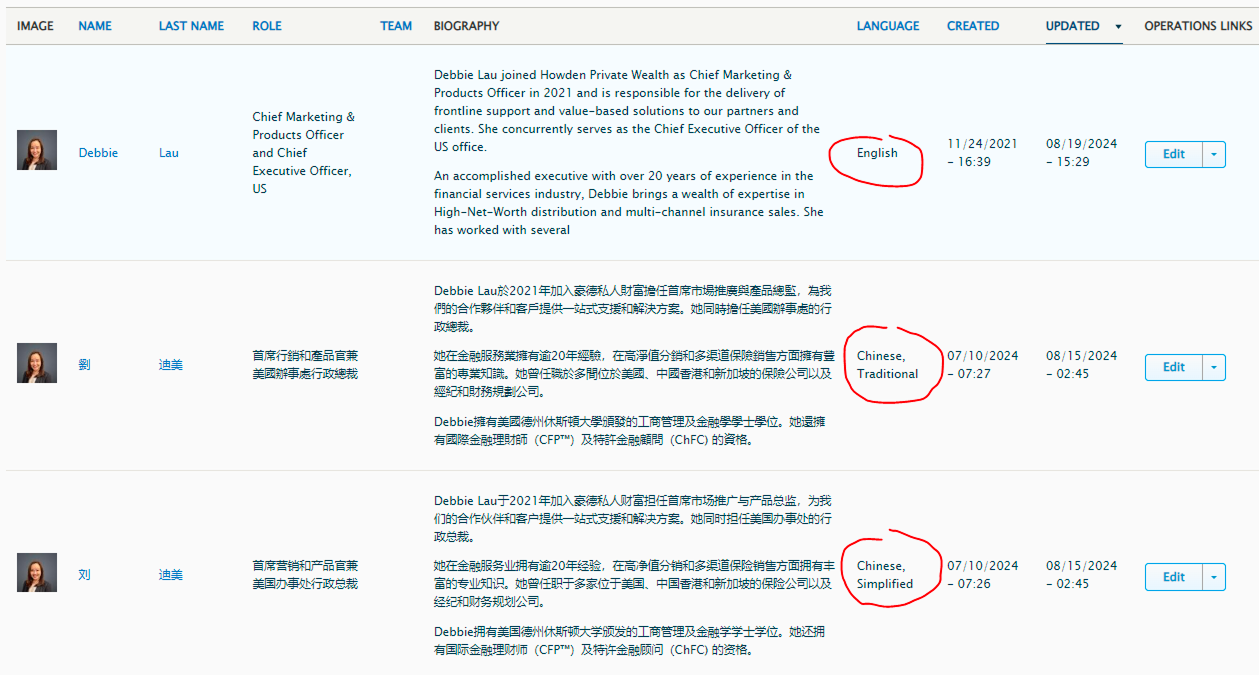
Pages:
Things to note
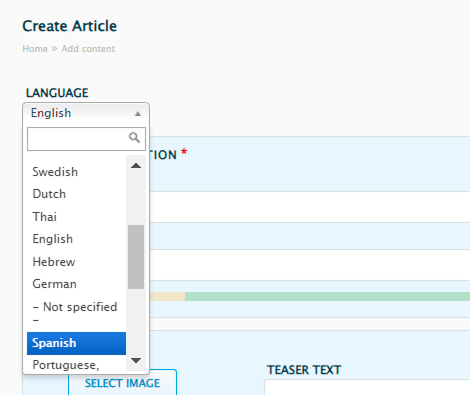
It is not mandatory to translate everything as long as you’re not adding links to that content on the navigation or footer. Everything added to the navigation or footer appears on all language versions. For example, you can create a page in Spanish directly without having to have the English first. All you have to do is select ‘Spanish’ at the top when you’re creating the page. This will instruct the system to setup the page under the /es URL path rather than the /en . Your page will be part of the Spanish (es) version of the site, but not on the English (en) version of the site.