
Quote Carousel
Boost credibility and engagement
Best practice demo
A heading that motivates users to scroll

Use short, impactful quotes to convey important ideas and boost trust. They should sound believable and authentic, not scripted or jargon-heavy.
Inspirational quote from our country CEO.
You can use quotes as a vehicle to highlight key messages of your page, with or without an accompanying headshot.
Usage guidance
Overview
Boost credibility and engagement
The Quote Carousel displays quotes and key messages as scrollable cards. It’s an effective way of building social proof and keeping visitors engaged.
Each carousel card supports a headshot and a text box. Adding a headshot allows you to attribute a quote to a specific individual, boosting the credibility of the message. Meanwhile, a headshot draws the eye, making it more likely the message will be read.
You can also use the Quote Carousel to highlight important messages without attributing them to an individual.
When to use
- You have a pithy quote from multiple stakeholders, such as team members and clients
- There are several key messages you want to highlight
When not to use
The Quote Carousel requires a minimum of two cards to function. If you only have one quote or message to share, use the Quote component instead.
How to use it
Step 1: Write the heading
The heading should motivate users to engage with the carousel. For readability, the heading should be no longer than a single line. Use a maximum of eight words (or 50 characters).
Step 2: Create a carousel card
To create a new carousel card, select ‘add quote carousel item’.
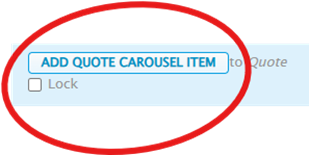
Add your message to the ‘quote’ text field. Make sure the quote sounds like something someone could believably say. Read the quote out loud to check it passes the test.
Quotes should be no more than 30 words. For longer testimonials of up to 95 words, use the Case Studies Carousel.
Step 3: Add the author’s credentials
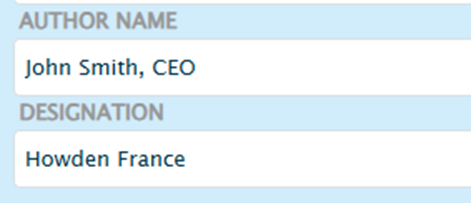
When attributing a quote to an individual, provide the following personal details:
- Name and job role: use the ‘author name’ text field
- Place of work (internal or external business): use the ‘designation’ text field
Optional step: Create a CTA button
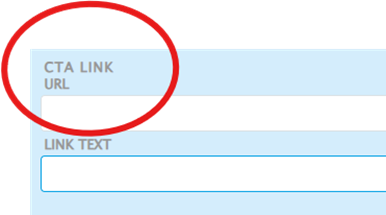
You can link to a relevant website, like the stakeholder’s LinkedIn profile.
Use the ‘URL’ text field to add the link.
Then add button copy using the ‘link text’ text field.
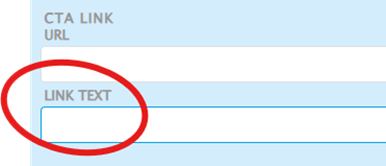
Your button copy must follow UX best practices. Effective button copy is clear and actionable. For example:
- Find out more
Step 4: Choose a headshot of the stakeholder
The headshot of the stakeholder should look professional. This includes both their expression and their clothes. The photo should also be taken in front of a plain white background.
See the recommended image specifications below for more information.
Step 5: Create another carousel card
The Quote Carousel must contain at least two carousel items.
To create a new carousel card, repeat steps 2 to 4. Then save the page.
Recommended image specifications
The Quote Carousel is not a responsive component. This means that the image must fit the component precisely to display correctly.
To prevent the image from appearing distorted, follow the recommended image requirements:
| Format | Orientation | Dimensions | File size | |
| JPG | Square | Width: 700px
| <100KB |
For more information about uploading images to the CMS, see the ‘Image basics’ advice.
Do’s and don’ts
Do
Add at least two quote carousel cards
You won’t be able to save the page with a single card.
Put your strongest quote first
The first quote is always visible. So make it a good one.
Check the quote sounds believable
Read the quote out loud to check it sounds like something someone would actually say.
Don't
Don’t use more than 30 words
Check the page in mobile view to make sure the quote is short enough. If you need to scroll to read the whole quote, it’s too long.