
Wayfinder
Signpost core content from a homepage
Best practice demos
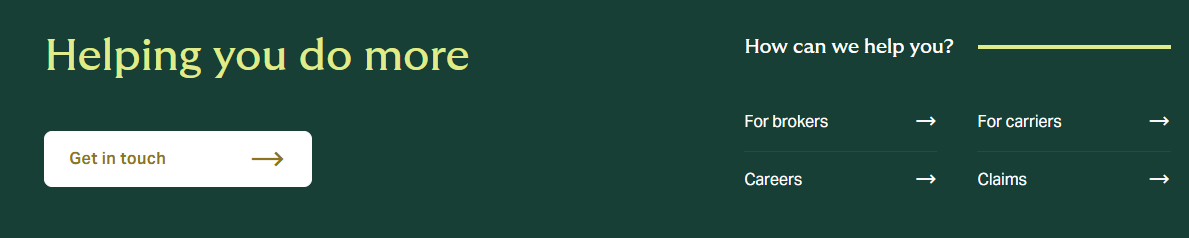
Short brand message
Support your brand message with some additional copy, up to three lines.
Motivate users to interact with the links
Usage guidance
Overview
Signpost core content from a homepage
The Wayfinder is a navigation tool that’s widely used on DUAL homepages. It’s typically used directly after the hero banner to signpost core content, such as:
- About us
- Products
- News & media
- Contact
The Wayfinder also supports two CTA buttons, providing an opportunity to encourage conversions.
How to use it
Step 1: Add a heading
The Wayfinder heading is usually a brand message. DUAL pages typically use:
- Helping you do more
The heading should occupy a single line. That gives you four or five words, up to a maximum of 20 characters.
Optional step: Add some supporting copy
You can choose to add some additional copy to support your message. Add your copy to the ‘subtext’ text field.
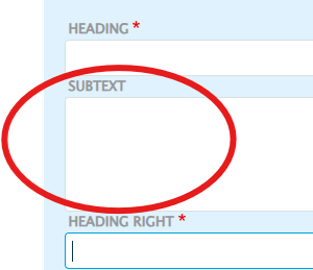
The supporting copy must not occupy more than three lines. Use a maximum of 35 words (220 characters).
Step 2: Add the ‘heading right’
The ‘heading right’ appears on the right-hand side of the component, directly above the links.
Use it to encourage users to interact with the links. For example:
- Discover more
- How can we help you?
The heading right must be a single line. That gives you about seven words or 40 characters.
Step 3: Create the links
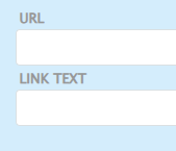
The Wayfinder supports up to six links. To make the links, use the ‘URL’ and ‘link text’ fields.
URL
Add the page you want to link to the ‘URL’ text field.
When linking to an internal page, you can search for your desired page and select it from the dropdown menu.
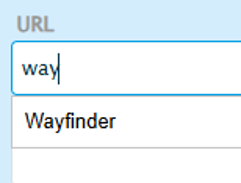
If the page is external, you must copy and paste the full URL into the URL text field.
Link text
The link text should represent the title of the destination page and be simple to understand. Avoid internal references to products or services that users may not be familiar with.
Add the button copy to the ‘link text’ field.
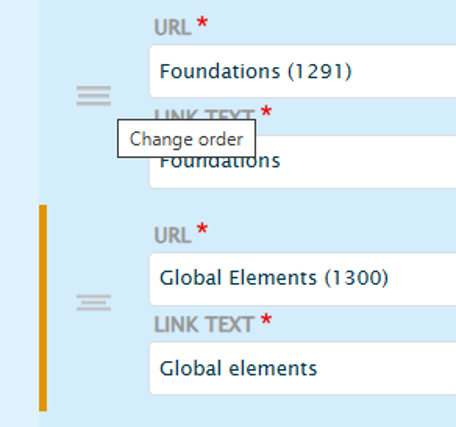
Step 4: Rearrange the link order
Once you have all the links you need, you can order them alphabetically or by popularity.
To change the order of the links, simply drag and drop into the desired position.
Optional step: Add CTAs
You can add up to two CTAs. For example, a contact form and a quote form.
To create a CTA, complete the CTA button text fields.
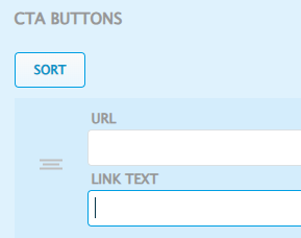
Add your form’s URL to the ‘URL’ text field.
Use the ‘link text’ text field to add your button copy.
Your button copy must follow UX best practices. Effective button copy is clear and actionable. Good examples include:
- Get in touch
- Register now
- Get a quote
- Start assessment
Do’s and don’ts
Do's
Check the links before publishing
Make sure all the links work and go to the right place.
Don'ts
Don’t link to unrelated pages
Only include truly related content that adds value.