
Article Hero
How to set up an article page
| Date | Update |
11.11.25 | Professionalised the look and feel of our news and insight hero banner |
Best practice demo
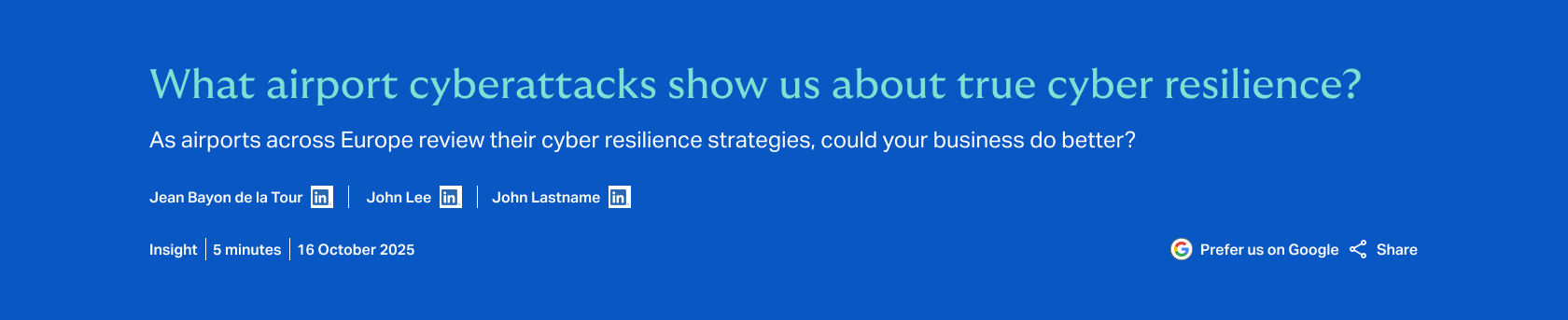
Usage guidance
Overview
How to set up an article page
The Article Hero presents key publishing information at the top of an article page. It pulls through compulsory information that must be added to the page before an article can be published, as well as some optional details.
Compulsory information means that you will be unable to save the page without it. This includes the:
- Page title: A headline that encourages users to read the article
- Format: Which content type the article belongs to, such as news, insight, or opinion
Some details are generated automatically:
- Publication date: This is the build date by default, but it can also be adjusted manually.
- Average reading time: The figure is calculated based on the word count.
Others are optional but recommended:
- Standfirst: A brief summary of the article that increases engagement
- Author: Specifying the author adds credibility, boosting SEO performance.
How to use it
There’s no way to edit the Article Hero directly. Instead, you’ll need to add the information elsewhere on the page.
Add the headline
The headline is arguably the most important part of an article. It’s what grabs attention and motivates people to read on.
An effective headline promises value while being intriguing.
Use the ‘page title’ text field to add the headline.

Don’t let the headline run onto a second line. Use a maximum of 16 words (80 characters).
Add the standfirst
A standfirst is an editorial device designed to make the reader more inclined to read the content. It provides an intriguing taste of what follows, provoking a desire in the reader to read the whole piece.
Use the ‘standfirst’ text field to add the standfirst.

Don’t use more than two full lines (about 35 words).
Select the format
The format describes which content type the article belongs to. This information helps readers to determine the style and value of the content. Depending on the reader’s preference, knowing the content type can boost engagement.
You can also filter articles by format when using the Articles List Cards component.
Select the ‘format’ text field under ‘taxonomy’ for a dropdown menu of categories. Options include:
- Calculator
- Case study
- Factsheet
- How-to guide
- Infographic
- Insight
- News
- Opinion piece
- Quiz
- Report

Designate the publication date
By default, the publication date is when the page was created. However, there are some situations where you may want to change the date manually.
One reason is when there’s a delay between the page being built and published. For example, it might take a while to get the article approved for publication.
Another reason is to boost SEO performance. Google prioritises ‘freshness’ when ranking article content, rewarding content with a recent publication date.
To change the publication date manually, select the ‘authoring information’ tab on the right-hand side of the screen. Then navigate to the calendar under the heading ‘authored on’ and choose a publish date.

Assign an author
Displaying the author’s name builds credibility and trust. It’s a key part of satisfying Google’s E-E-A-T (Experience, Expertise, Authoritativeness, and Trustworthiness) guidelines.
To assign an author, they must first have a profile in the People Directory.
Use the ‘authors’ search field to select the author.
