
Hero-Full Width Image
Make a strong impact with an opening image
Best practice demo
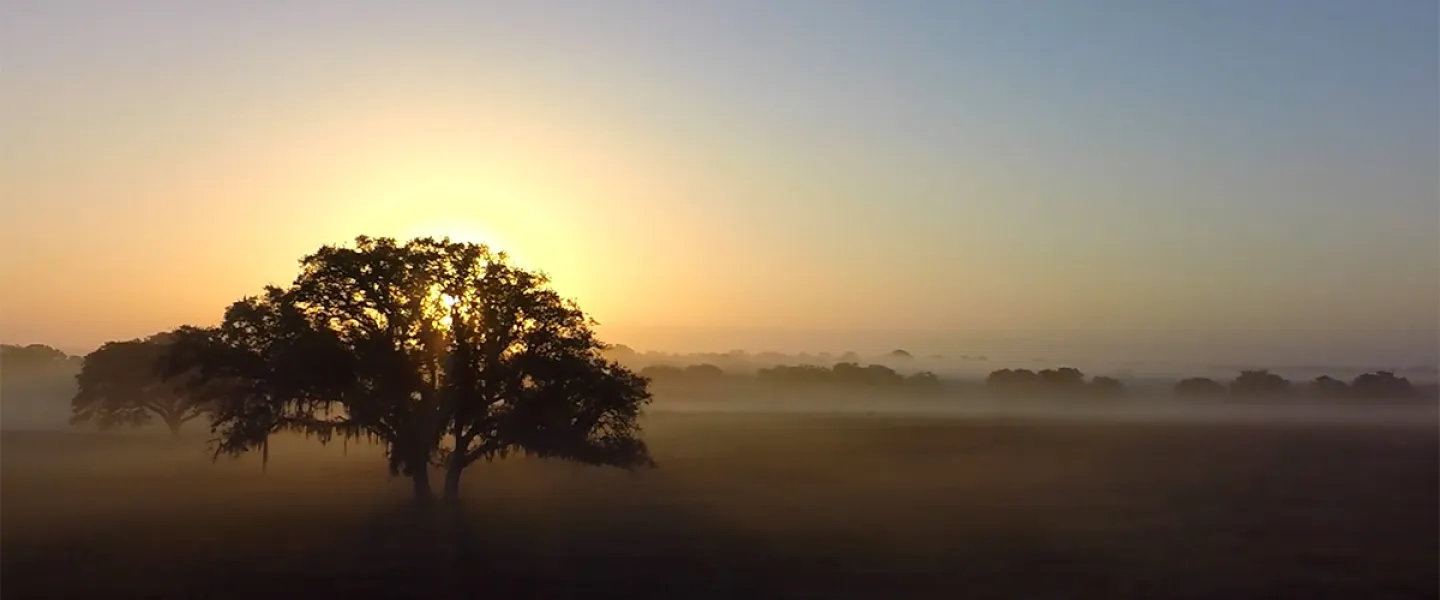
Usage guidance
Overview
Make a strong impact with an opening image
Hero banners help both users and search engines to understand your page.
The large heading – identical to your page title – reassures users that they’re in the right place. Meanwhile, the built-in H1 tag tells search engine bots what the content is about.
A well-chosen image will also contribute to setting context and making your reader feel comfortable.
Starting a page with an image helps to capture interest and boost engagement.
How to use it
Step 1: Add a heading
Your heading – the H1 in this case – must be the same as your page title (not to be confused with the SEO title). This might be a product, sector, or headline.
Headings must not occupy two full lines in this component, as it reduces readability. Use a maximum of 30 characters, up to five words.
Optional: Include a subheading
Add an optional subheading to support your heading with an aspirational or complementary message. Make sure your subheading doesn’t go onto a second line – that gives you a maximum of ten words.
Step 2: Choose an image
Your image should help to convey the message of your content. For example, a page about renewable energy might use a photo of a wind turbine.
You can select an existing image or import a new one.

To upload a new image, select ‘import image', then ‘select file’.

Add a title and alternative text, then select ‘select image’.
For more information about uploading images to the CMS, see the 'Image basics' advice.
Step 3: Make a call to action
Tick the ‘add CTA’ box to add a call-to-action button.

When setting up a call-to-action button, you first need to have an appropriate form to direct users to. Copy and paste the URL into the ‘CTA link’ text field. Alternatively, search for your form in the CTA link text field and select it from the dropdown menu.
It’s important to use button text that describes the action you want users to take. Click the ‘CTA text’ dropdown to choose from the pre-set options, including:
- Get in touch
- Get a quote
- Request a quote
- Start assessment
- Contact us
- Book a demo
- Register your interest
- Read more
Recommended image specifications
| Format | Orientation | Dimensions | File size |
| JPG | Square | Width: 1600px Height: 1600px | <100kb |
Do's and don'ts
Do
Place the hero banner at the top of the page
The hero banner should be the first thing users see.
Don't
Don't use more than one hero banner
Having a single H1 per page is a fundamental SEO principle.
Don’t repeat your heading
Your subheading should complement the heading rather than repeat it.
Don’t use portrait-format images
Portrait images can appear cropped, distorted, or leave empty spaces on wide screens.